

Build

Every project document with the right people

Construction document management and document control software

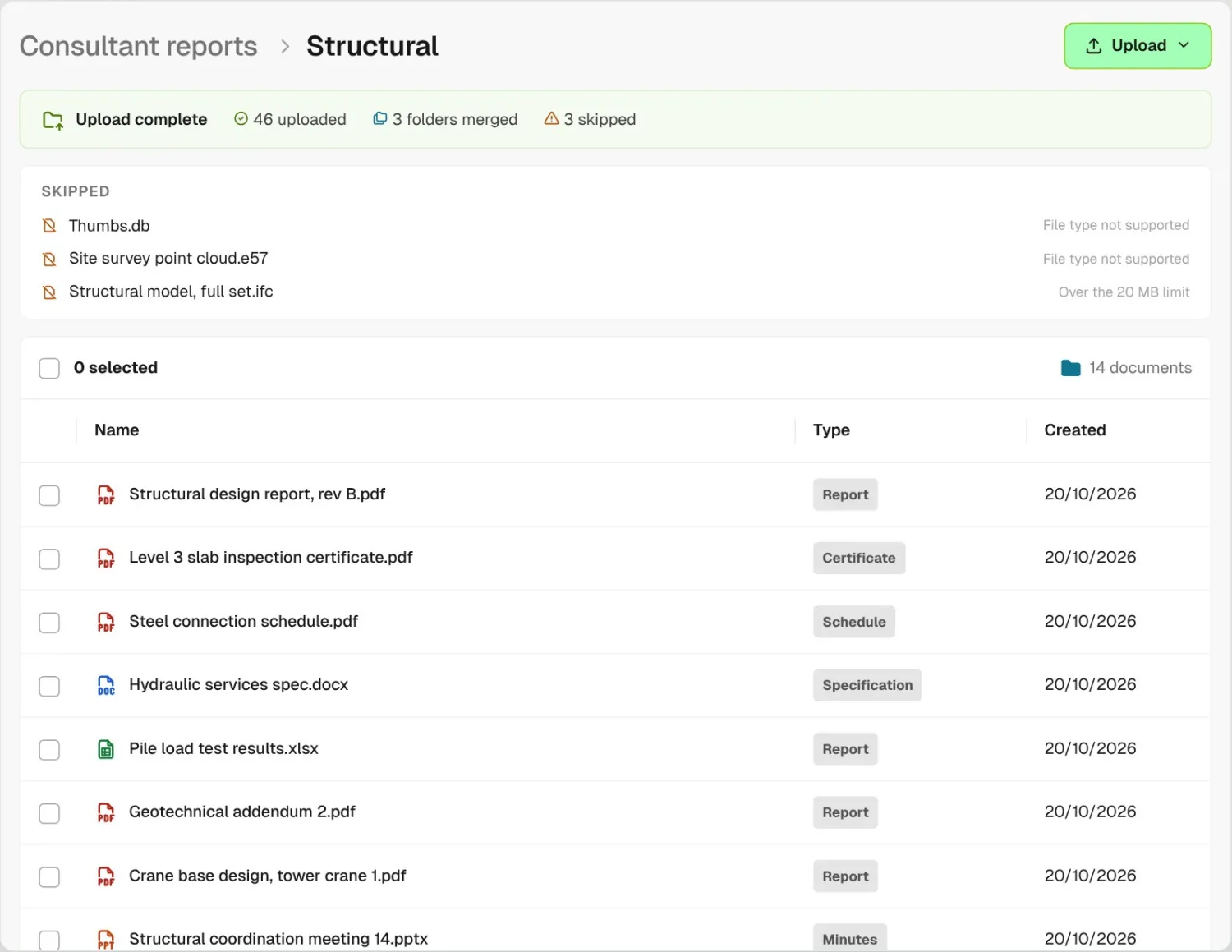
Project managers upload whole folders to BuildPass construction document management software, and Document Summary sums up every file as it lands. Site managers choose who sees each one: inducted workers, the client in the portal, or anyone with a link.
Project Documents for Northside Apartments with folders, file types, Workers, Public and Client tags and created dates

Trusted by builders across the country

From custom-home builders to commercial head contractors, site teams keep their project documents on BuildPass.


Vaughan Constructions
Hicon
JCGAU
Turn Group
Saw Constructions
Rendine Group
Vaughan Constructions
Hicon
JCGAU
Turn Group
Saw Constructions
Rendine Group
Universal Constructions
McColl Smith Projects
Peach
Staark
Creador Interiors
ARC Projects
Mancini Made
Sense Projects
Universal Constructions
McColl Smith Projects
Peach
Staark
Creador Interiors
ARC Projects
Mancini Made
Sense Projects

Document management software helps builders and head contractors store project files in folders, summarise each one with AI as it uploads, share them with workers, with clients when the client portal is on, and collect documents from subbies for review.

From the upload to the worker’s phone, in three steps

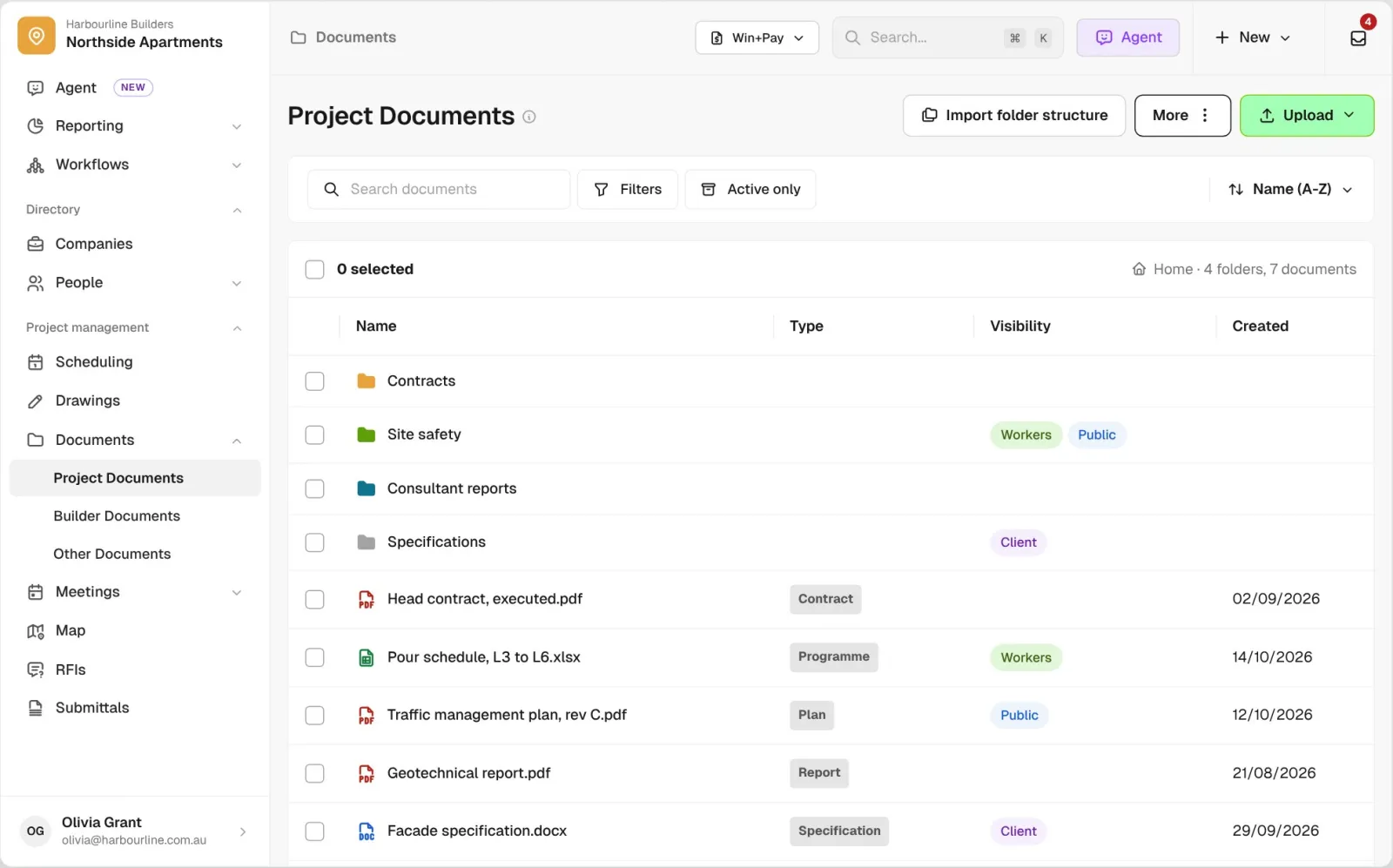
Structural folder just after a folder upload, with 46 uploaded, 3 folders merged and 3 skipped files listed with the reason
01

Upload whole folders

Drag in a whole folder. Matching folders merge, and anything BuildPass can’t take is listed as skipped with the reason, so you know exactly what came across.
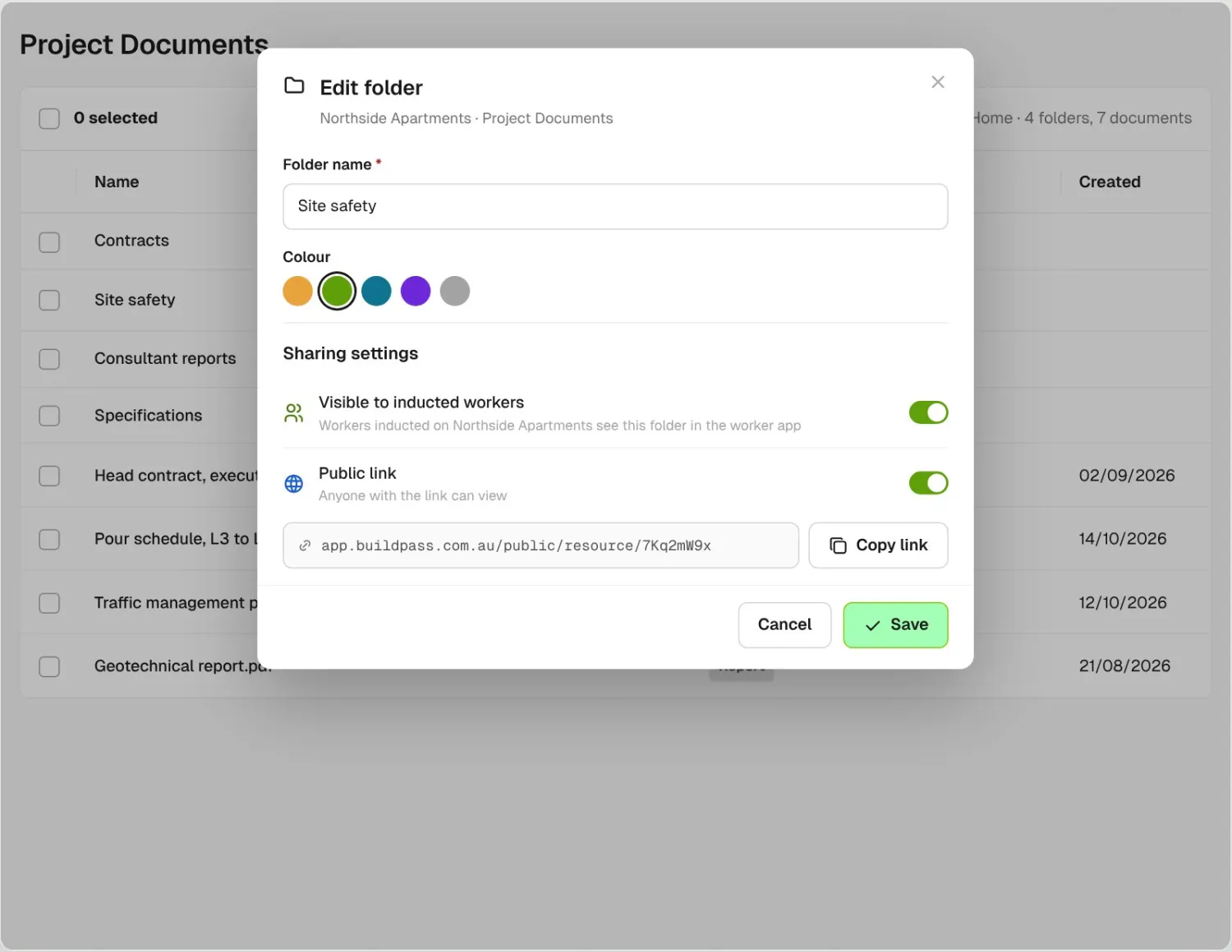
Edit folder dialog with sharing settings for workers and a public link
02

Choose who sees it

Turn a folder on for inducted workers, or switch on a public link so a consultant or subbie with no login can open it.
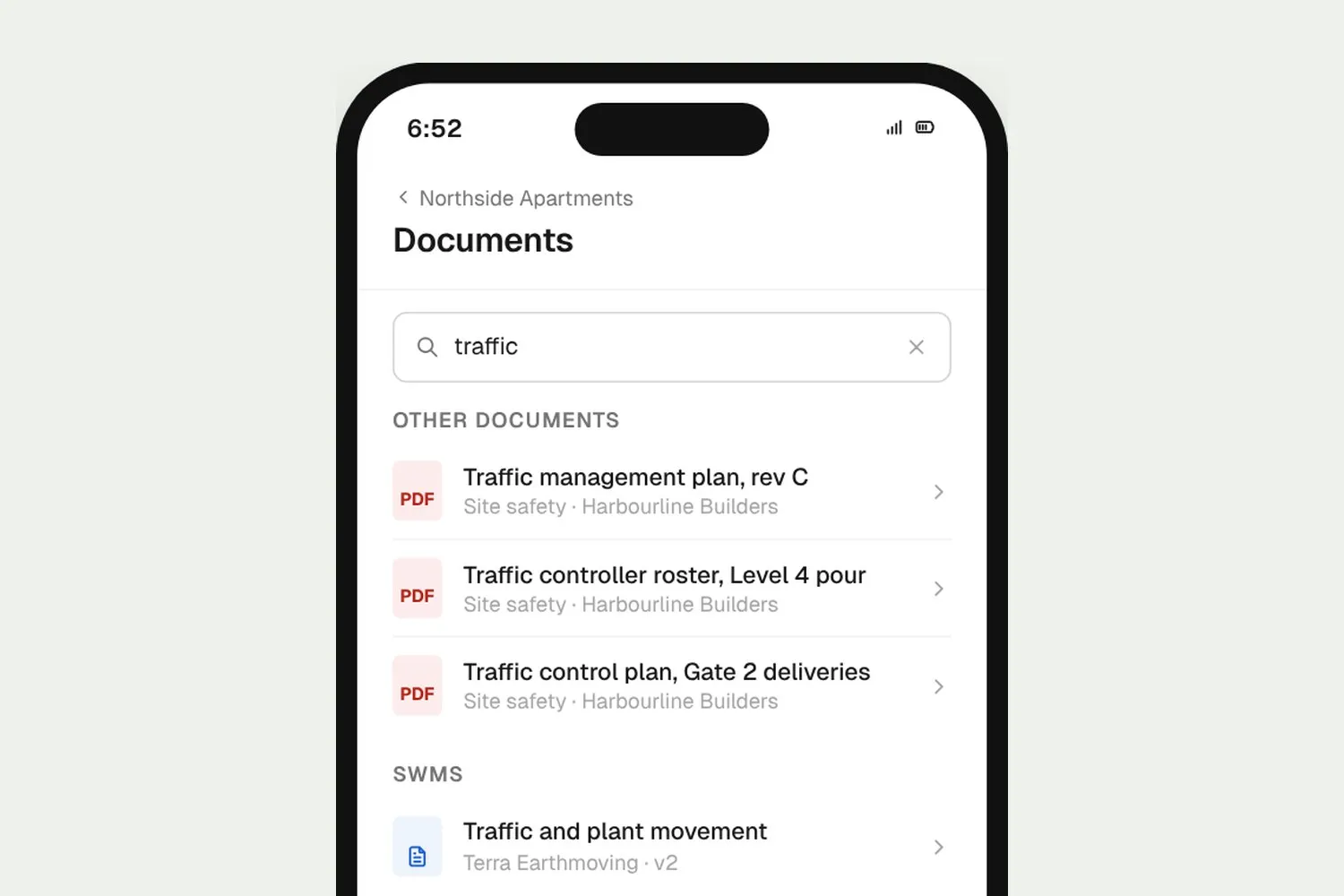
Worker phone showing project documents grouped with SWMS and SDS, filtered by a search
03

Workers find it on site

Workers open shared documents on their phone, listed with their SWMS and SDS, and search by name to find the one they need.

How it works

Every construction document on the project, in one view

Sharing, reviews and previews sit next to each file, so the office and the site always work from the same folders.
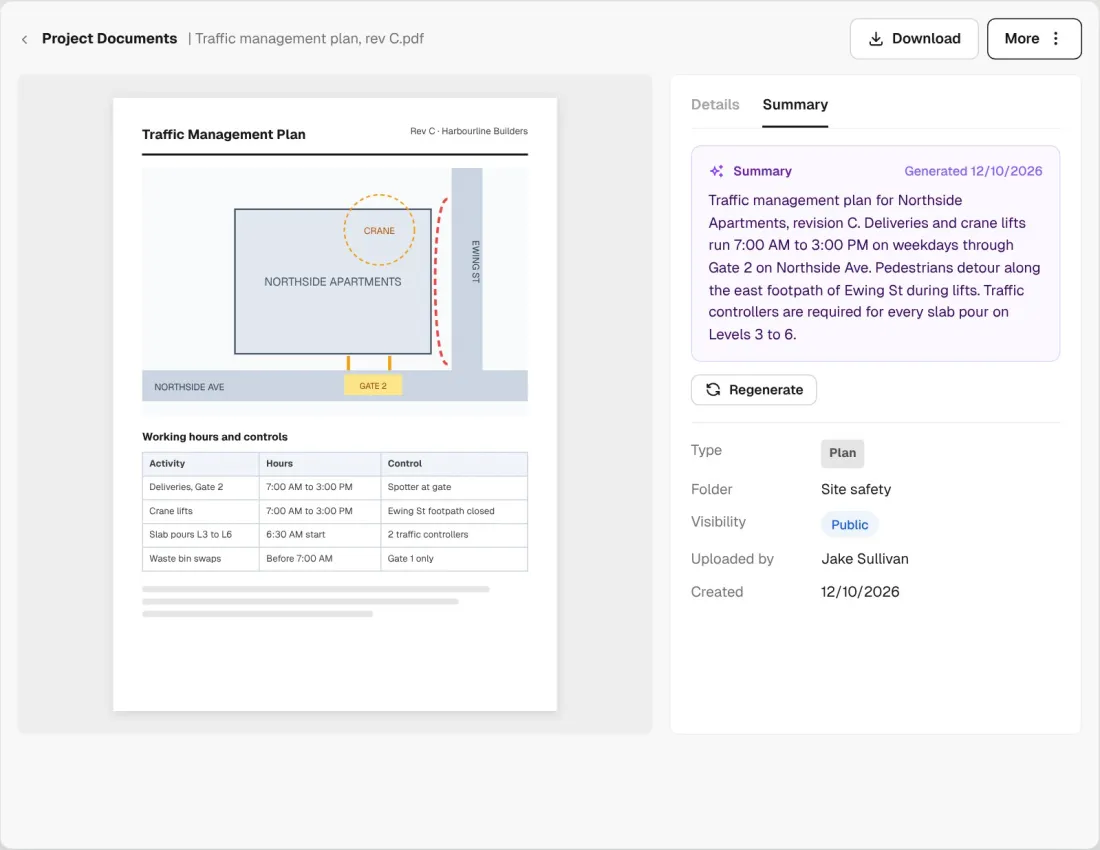
Traffic management plan open beside its Document Summary on the Summary tab, with a Regenerate button

Know what a file is before you open it

Document Summary reads each PDF, Word, Excel or PowerPoint file as it uploads and says what it is. Read it in the list or on the Summary tab, and regenerate it whenever you like.
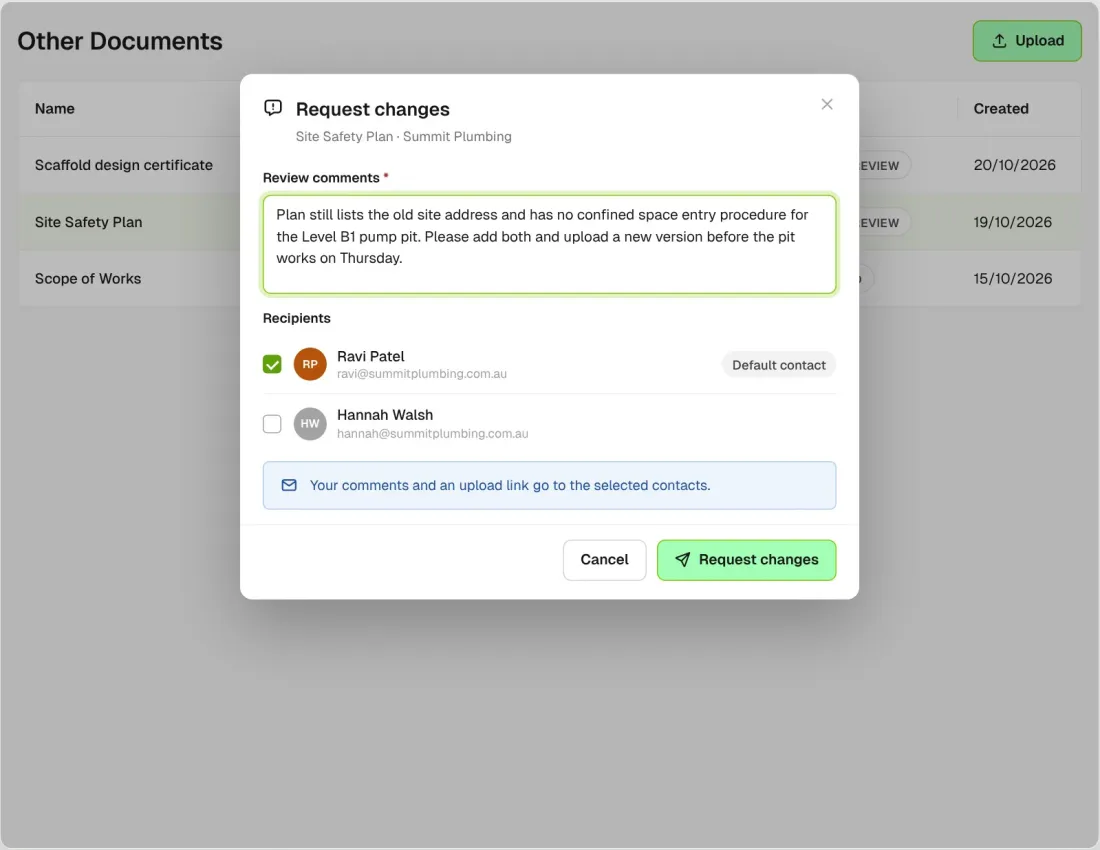
Request changes dialog for a company's Site Safety Plan with review comments and recipients

Review what subbies send

Documents from companies arrive waiting for review. Mark them reviewed, or request changes and the company gets your comments with a link to upload a new one.
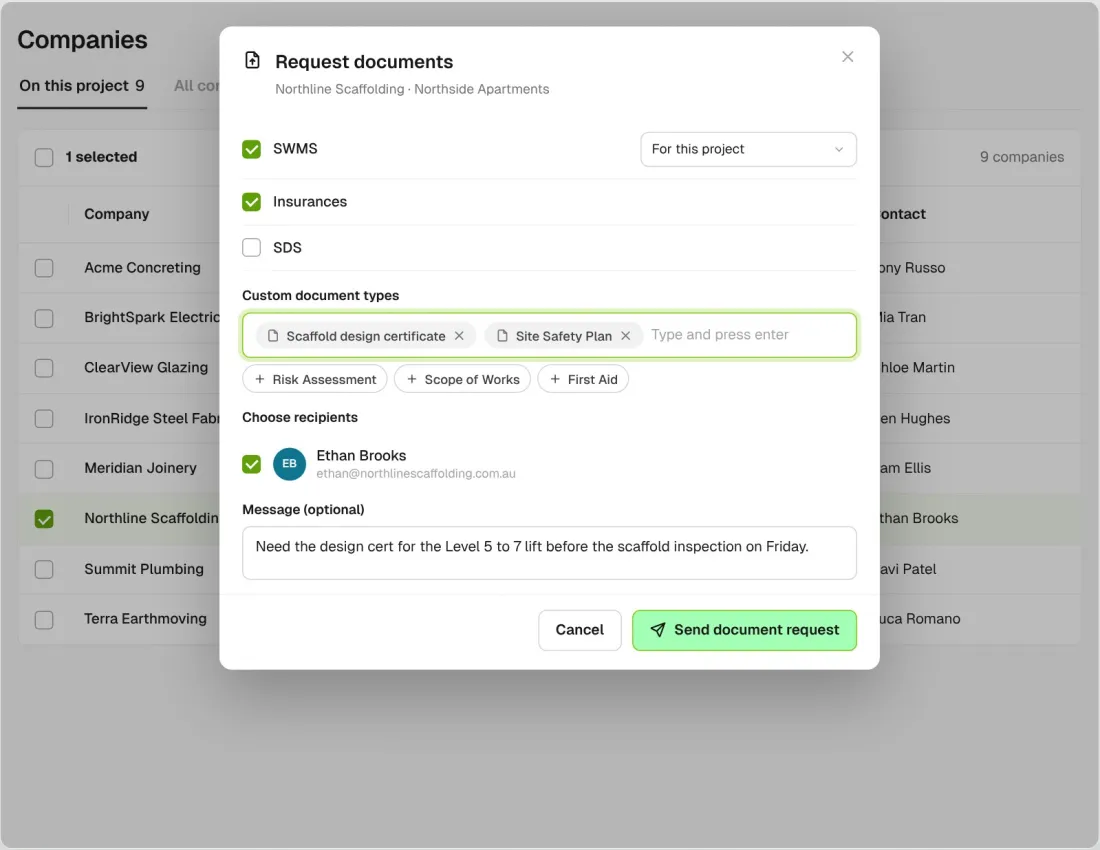
Request documents dialog with custom document types for a scaffolding company

Ask for any document by name

Add custom document types like Site Safety Plan or Scope of Works to a document request. What the subbie uploads lands in Other Documents against their company.
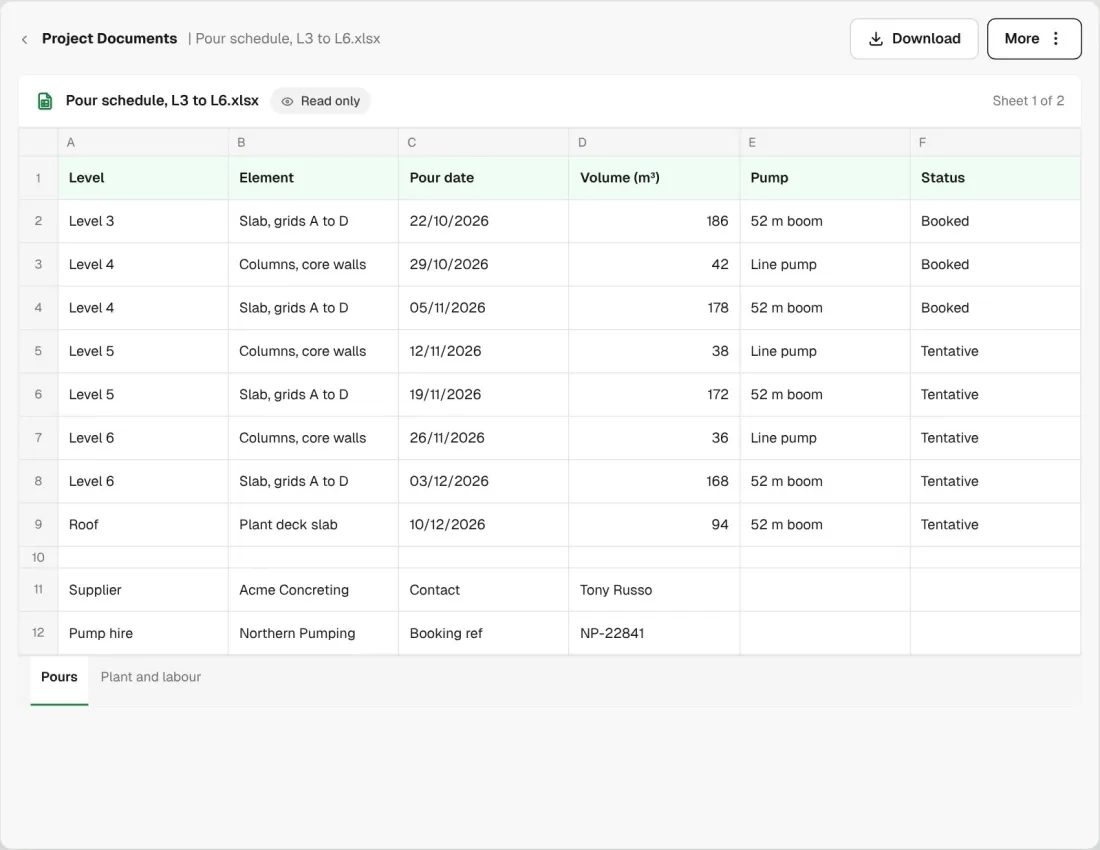
Pour schedule spreadsheet previewed read-only in the browser

Open spreadsheets in the browser

CSV, XLS and XLSX files open as a read-only preview. You can also store CAD, IFC and Revit files for people to download. Admins can download selected files and whole folders together as a ZIP.
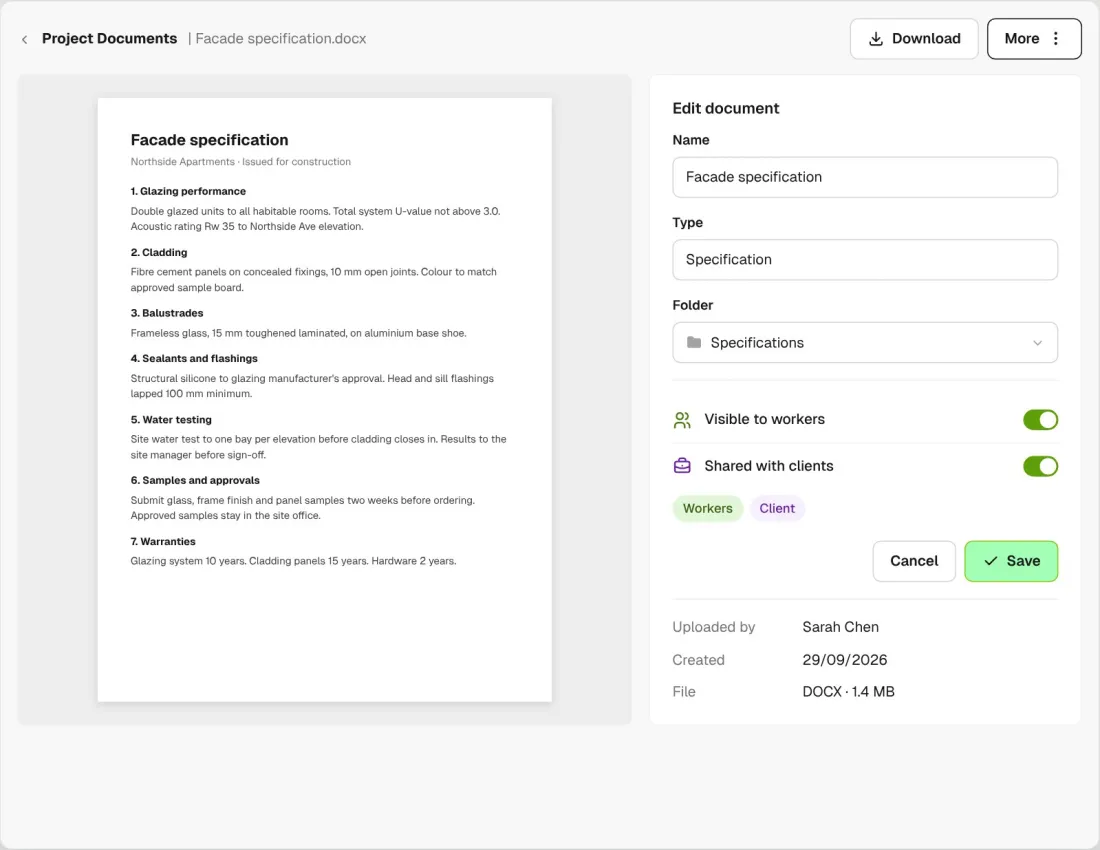
Document edit panel with Visible to workers and Shared with clients switches

Share one file, not the whole folder

Each file has its own Visible to workers switch and, with the client portal on, its own Shared with clients switch.
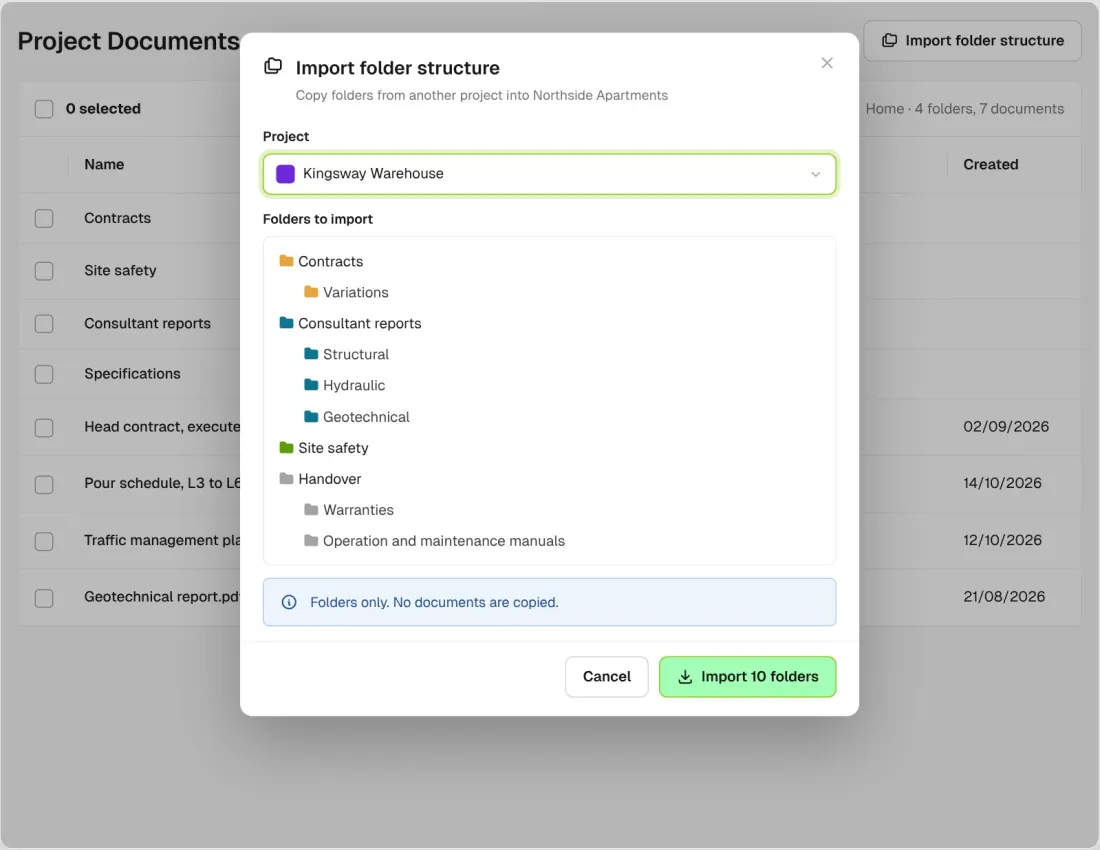
Import folder structure dialog copying folders from another project

Start every job with your folders

Copy the folder structure from another project in one step. Only the folders come across, not the files in them.

Connected to the whole job
BuildRun the site

Documents, connected to the whole job

Custom documents go out in the same request as SWMS, insurances and SDS, one link per company, and what comes back lands against that company. Workers see shared files next to their SWMS and SDS once their induction is approved. Drawing revisions and markup live in Drawings.

Explore site management
  1. Document requestSite Safety Plancustom type, one link per company
  2. ReviewReviewedOther Documents, Summit Plumbing
  3. SHARED WITH WORKERSSite safety folderWorkers plus a public link. Northside Apartments

Win

Price the job

Take off, estimate and get proposals out the door, without rekeying the same numbers three times.

Explore preconstruction

Pay

Manage the money

Budgets, commitments, progress claims and bills, so you see the real financial position of every job.

Explore finance

Connect

Connect the tools

Bring your other tools, your phone line and BuildPass AI into the same workflow.

Explore the AI toolkit

Trusted by builders who run their projects on BuildPass

From custom-home builders to commercial head contractors, teams across Australia and New Zealand run their projects on BuildPass every day.


The onboarding process and training we received from the BuildPass team was fantastic.
Nick Du Bois
Managing Director, FORA
These checklists ensure our standards are consistently met, no matter the project.
Mark Riley
Site Supervisor, Turn Group
I'd recommend BuildPass to any builder, sub contractor or site manager. It just makes your life easier.
Garath Vella
Director, Lorden Vella

Frequently asked questions

No. Documents stores, shares and previews your files. Drawing revisions, side-by-side comparison and markup are in Drawings, which also takes much bigger files.

Yes, through a folder. Switch on the folder’s public link and anyone with the link can view what’s inside or download the whole folder, subfolders included, as a ZIP without signing in. Links are per folder, not per file, and you can switch one off when you’re done.

PDFs, photos, Word, Excel and CSV files open in the browser. CAD, IFC, Revit, ZIP, Outlook and Microsoft Project files are stored for download. The standard limit is 20 MB per file, and our support team can raise it.

Once an Owner or Account manager switches on AI tools in Settings, each PDF, Word, Excel or PowerPoint file gets a short summary as it uploads, with nothing for your team to press. It reads the start of a long file, so it tells you what the document is, not everything in it. To ask questions across your project, use BuildPass Agent instead.

See how BuildPass works on your projects

Book a demo and we'll walk your team through it.