






















Build

Upload a photo of the whiteboard, AI builds the schedule for you

Construction scheduling software to build, share and update your construction schedule

BuildPass construction scheduling software reads your programme or a description of the job, and AI builds the phases and tasks for site managers to check. When dates move, subbies you pick get an SMS or email to confirm.

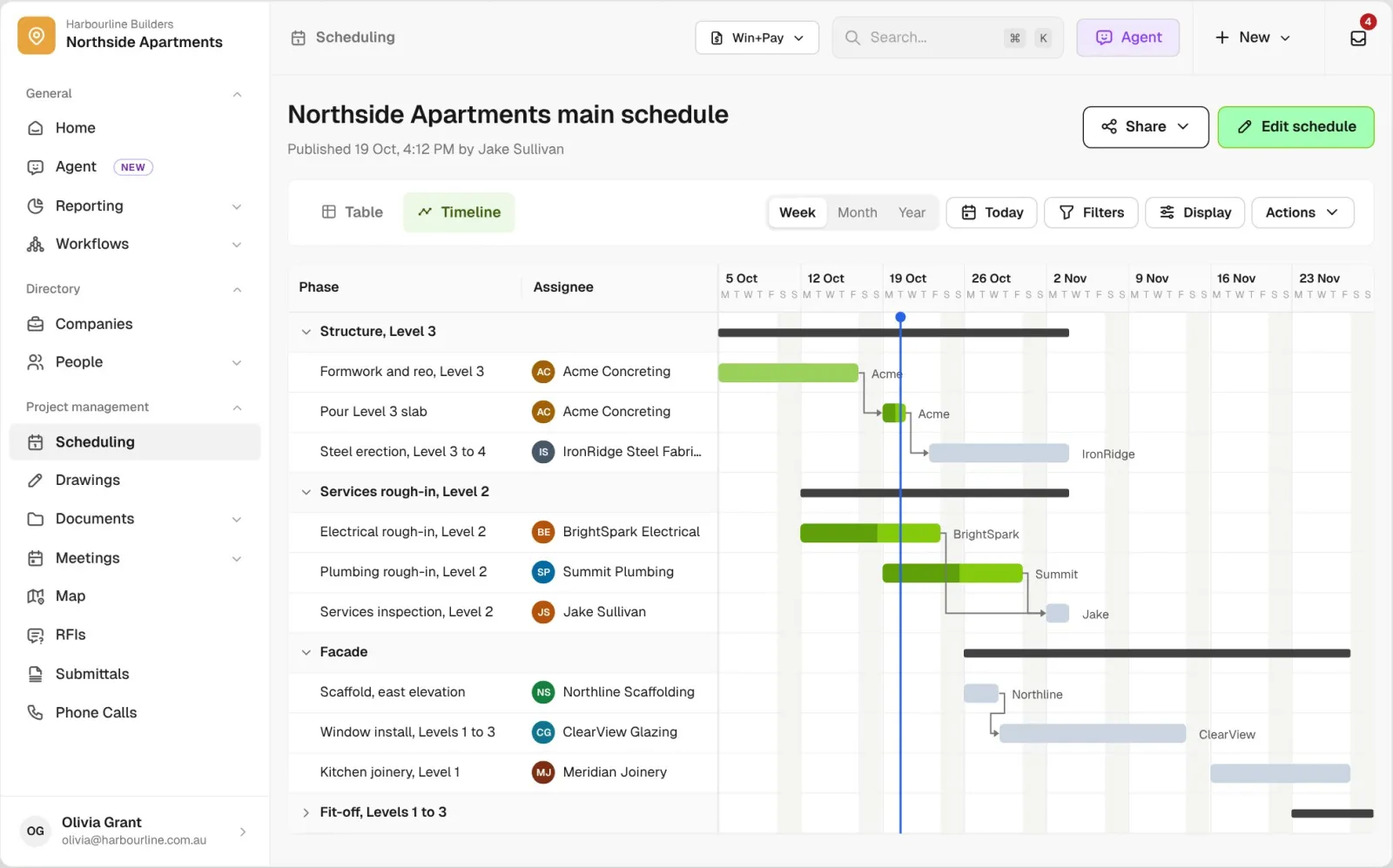
Northside Apartments schedule in timeline view with phases, tasks, assignees and dependency lines, and today marked

Trusted by builders across the country

From custom-home builders to commercial head contractors, site teams plan the job in BuildPass.

Vaughan Constructions
Hicon
JCGAU
Turn Group
Saw Constructions
Rendine Group
Vaughan Constructions
Hicon
JCGAU
Turn Group
Saw Constructions
Rendine Group
Universal Constructions
McColl Smith Projects
Peach
Staark
Creador Interiors
ARC Projects
Mancini Made
Sense Projects
Universal Constructions
McColl Smith Projects
Peach
Staark
Creador Interiors
ARC Projects
Mancini Made
Sense Projects

Construction scheduling software helps builders and head contractors plan phases and tasks, link them in order, assign subcontractors and share the latest schedule with trades and clients.

From your old programme to subbies confirming their dates

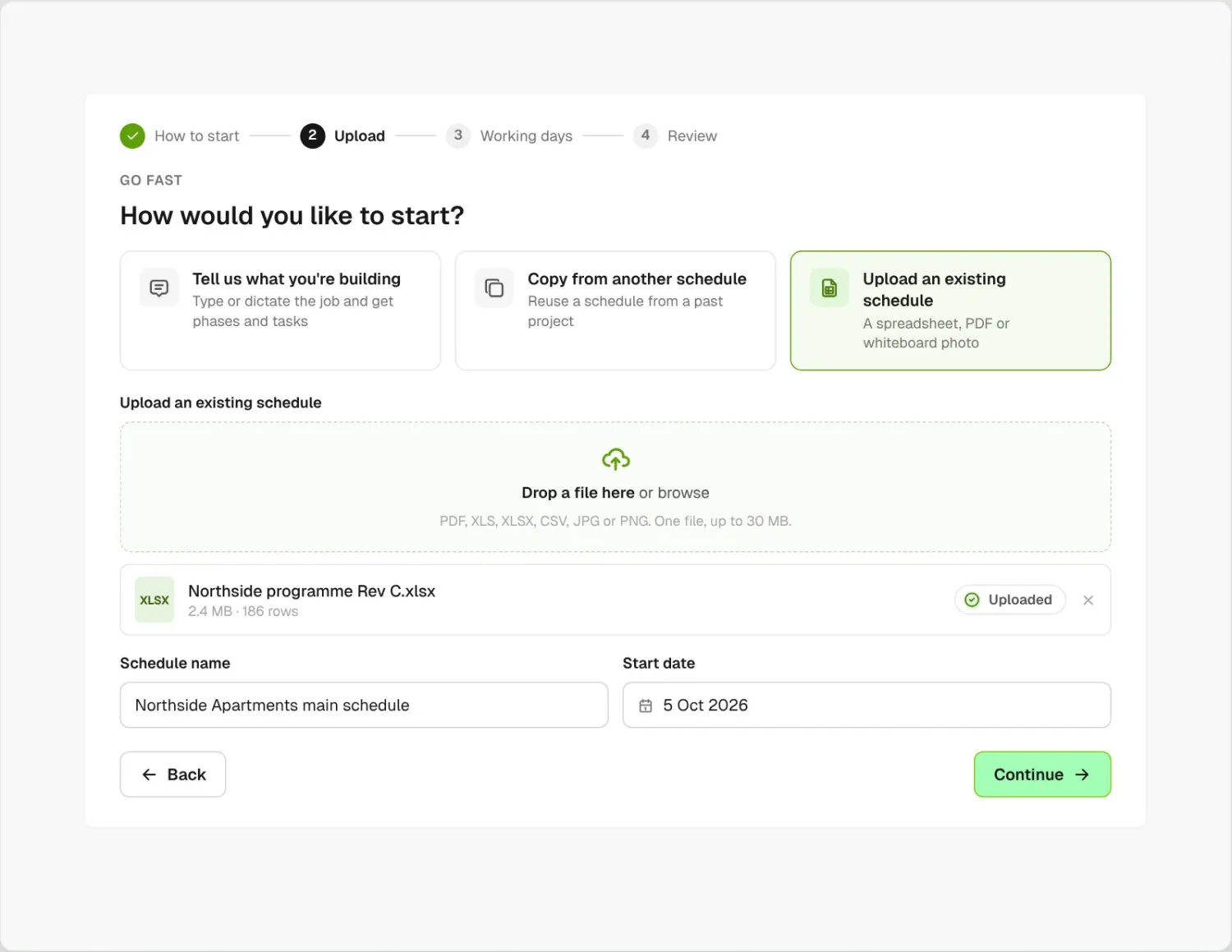
Schedule setup with Upload an existing schedule selected and a spreadsheet attached
01

AI builds the first draft

Upload a spreadsheet, PDF or whiteboard photo of your programme, or describe the job, and BuildPass uses AI to build the phases and tasks from your start date. You can also copy a past project with its assignees, links and public holidays.
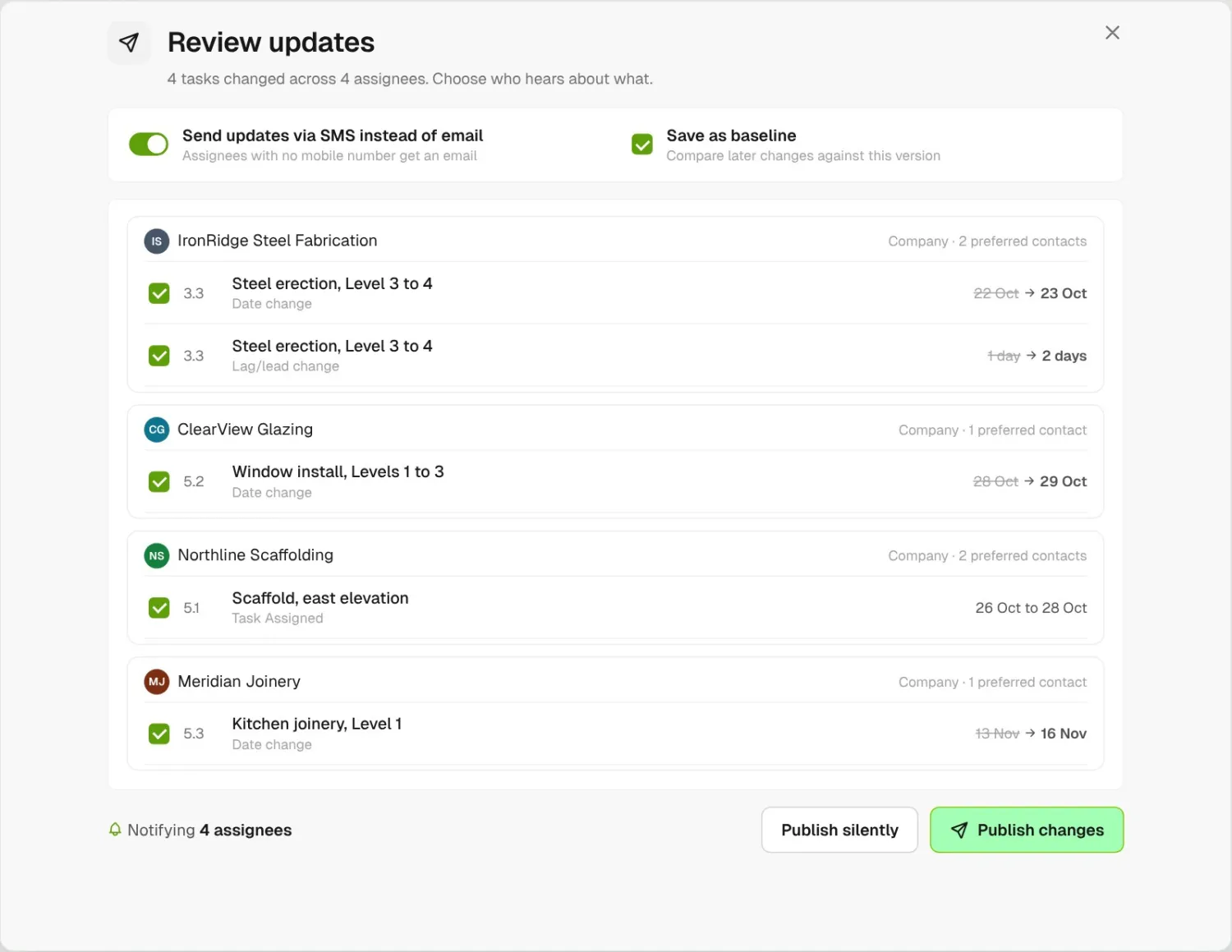
Review updates screen listing changes by trade, with SMS on, Save as baseline ticked and Publish changes
02

Publish the changes

Move tasks on the timeline, then check every change before it goes out. Tick who gets an SMS or email, or publish without sending anything at all.

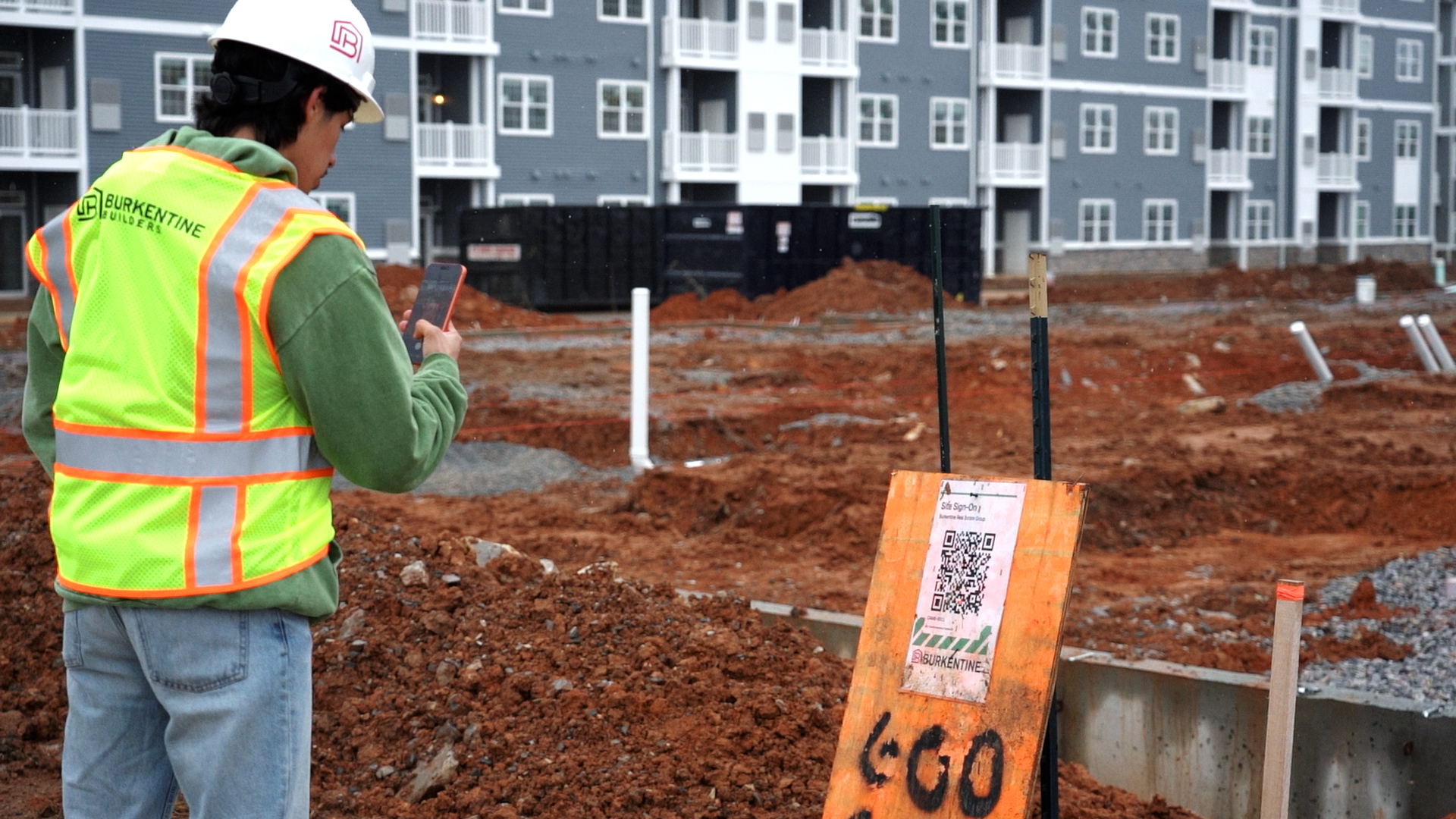
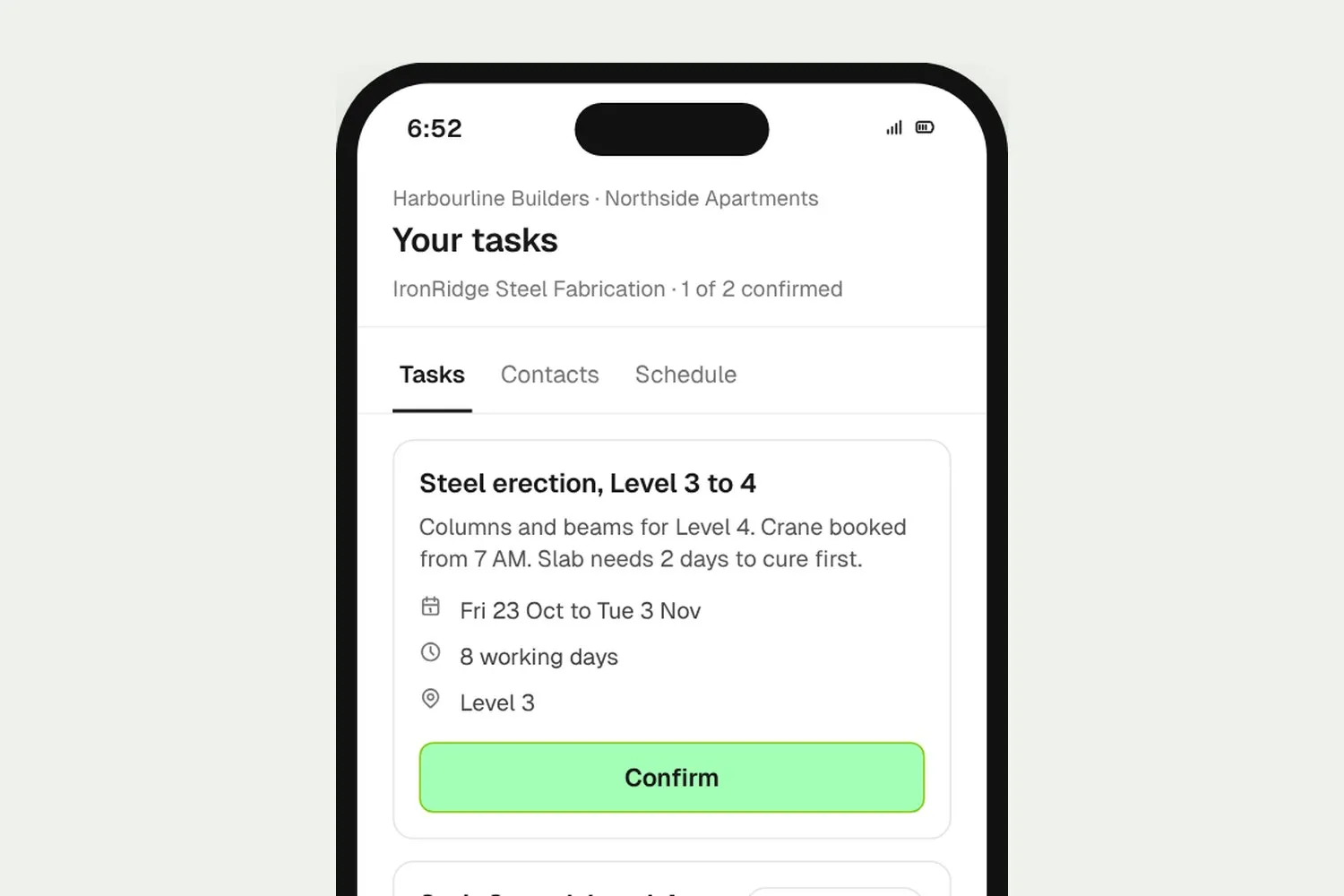
Sub on a phone confirming a steel erection task from a link
03

Trades confirm

Each subbie gets a link to their own tasks, with no login. They tap Confirm, and you can see who has confirmed.

How it works

Your whole construction programme, in one view

Switch between table and timeline views, put the right trade on a run of tasks at once, and print the next two weeks for the site office.

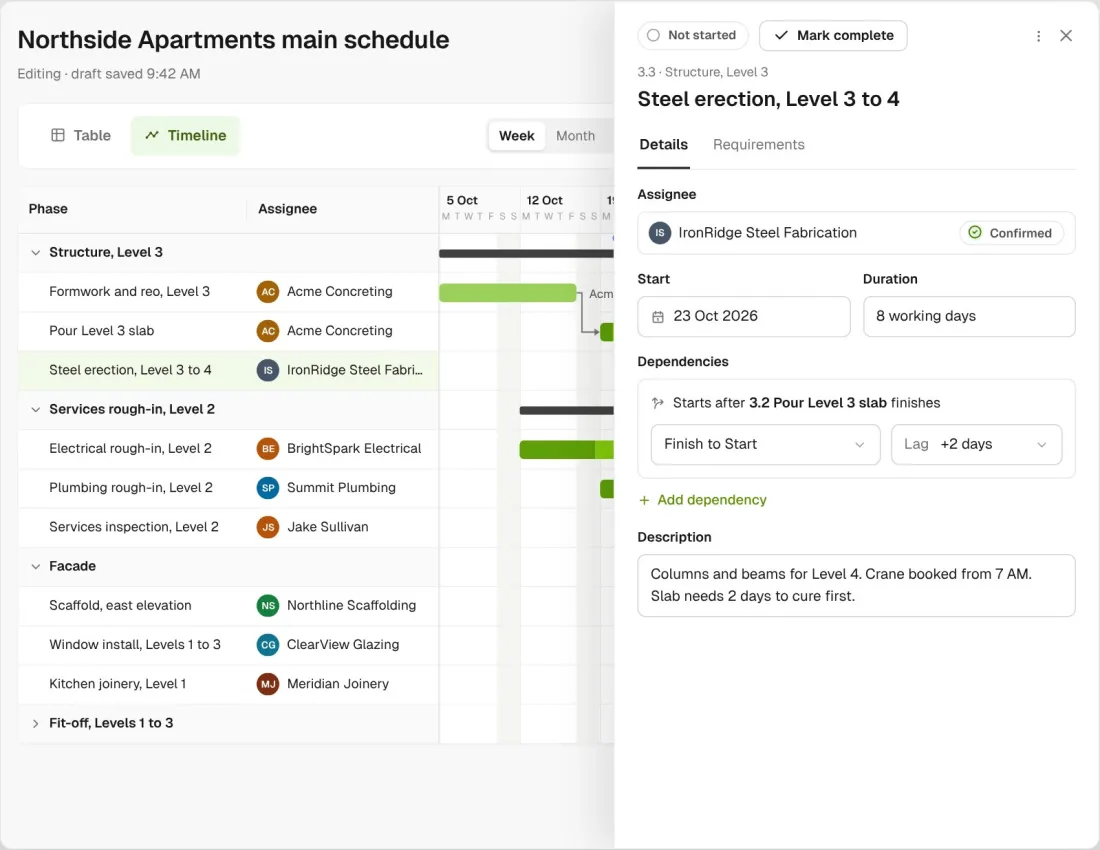
Task panel showing a Finish to Start link with a 2 day lag and the assignee confirmed

Link tasks in order

Use Finish to Start, Start to Start and the other links, with a lag for curing or drying time. A task can't be dragged earlier than its link allows.

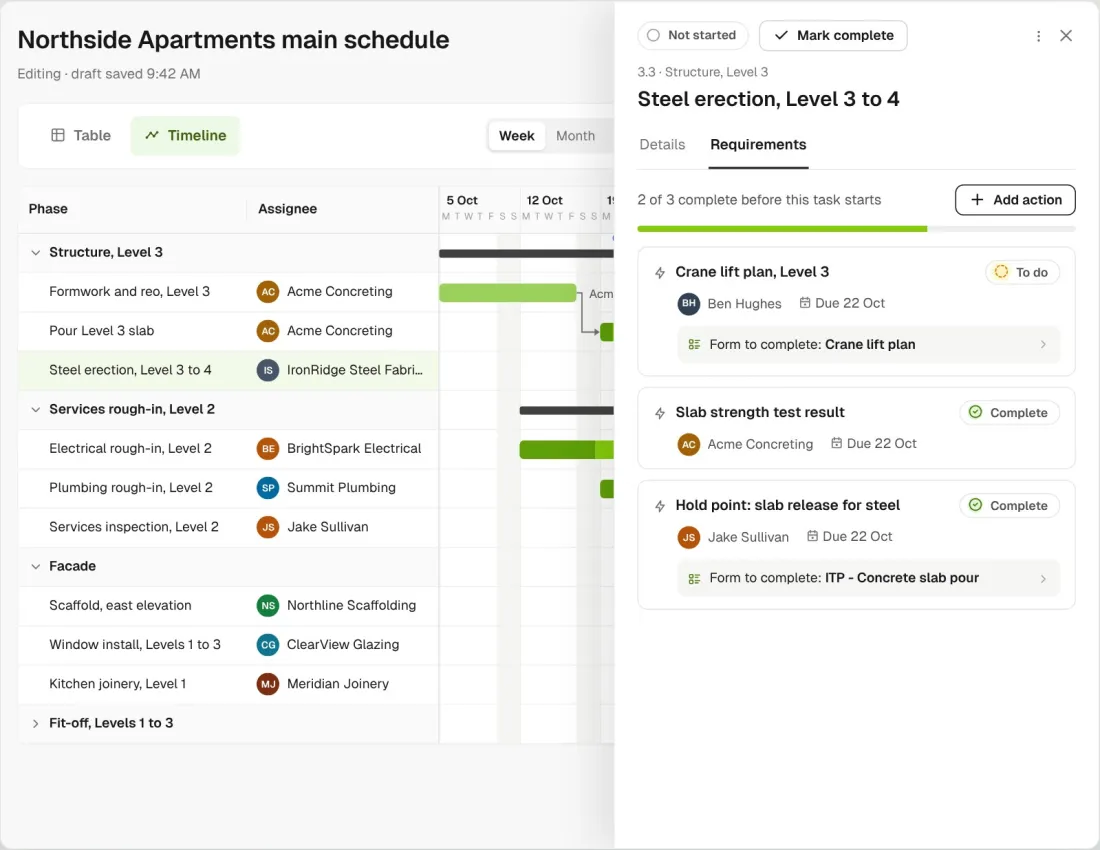
Task requirements listing actions with assignees, due dates and forms to fill in

Put the prep work on the task

Add actions to a task, each with an assignee, a due date and a form to fill in, like a lift plan before the steel goes up.

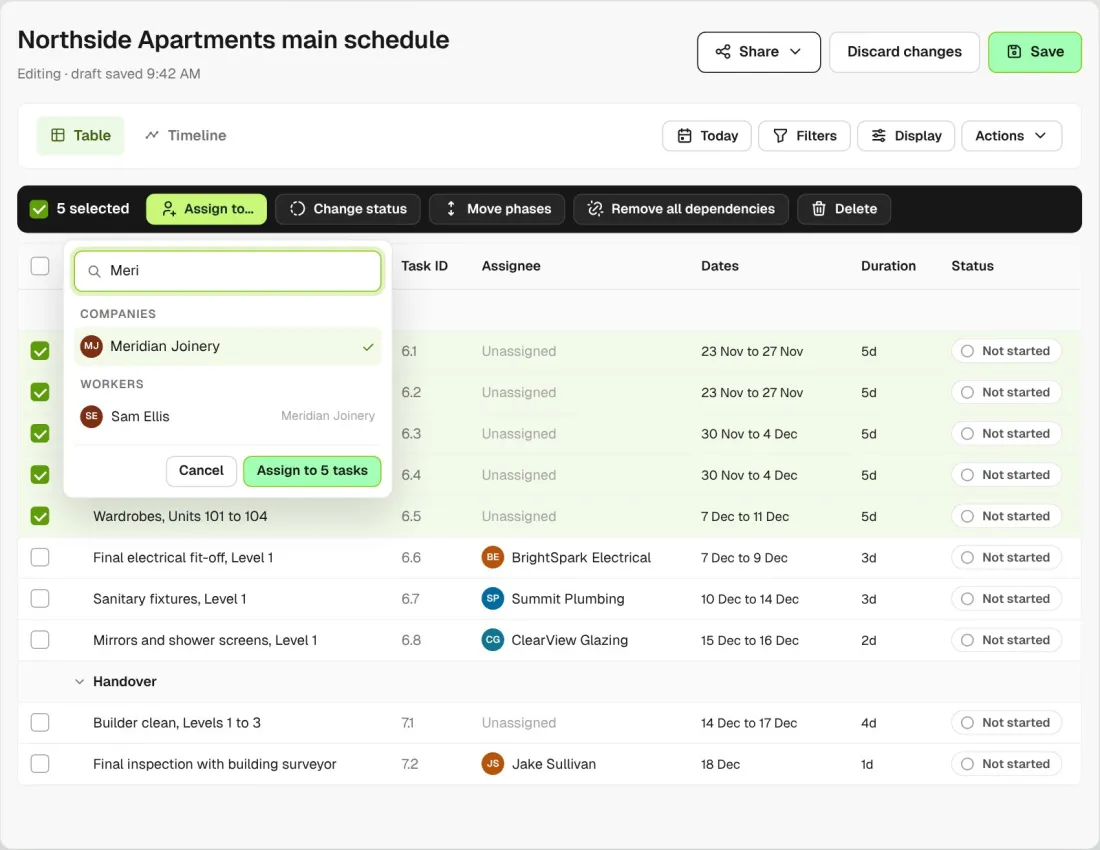
Five tasks selected in table view with Assign to open on Meridian Joinery

Assign a trade in one go

Select a run of tasks and assign them to a company or a worker at once.

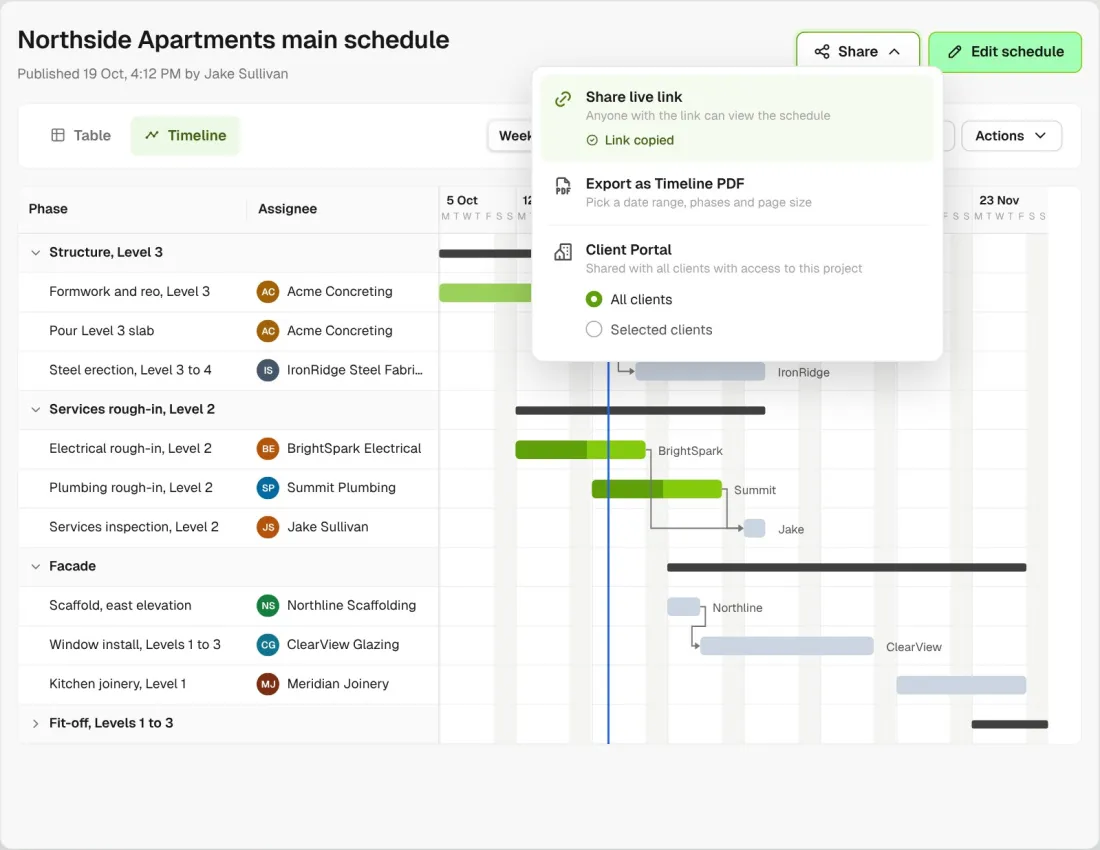
Share menu with live link copied and the schedule shared to all clients in the client portal

Share the live schedule

Send trades a live link that always shows the latest published schedule, read only and with no login. Clients can view it in their client portal.

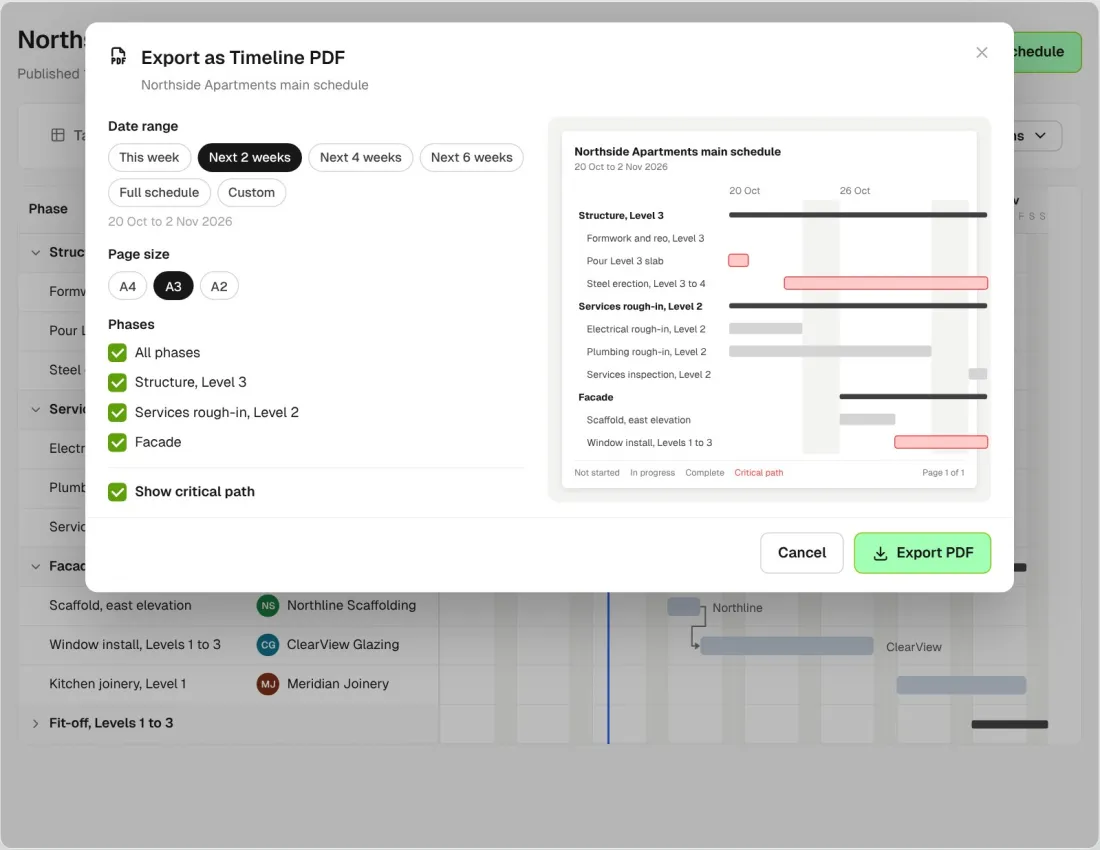
Export as Timeline PDF set to Next 2 weeks, A3, selected phases and critical path

Print a two week lookahead

Export the next two weeks as a Timeline or Table PDF. Pick the phases and page size, and show the critical path.

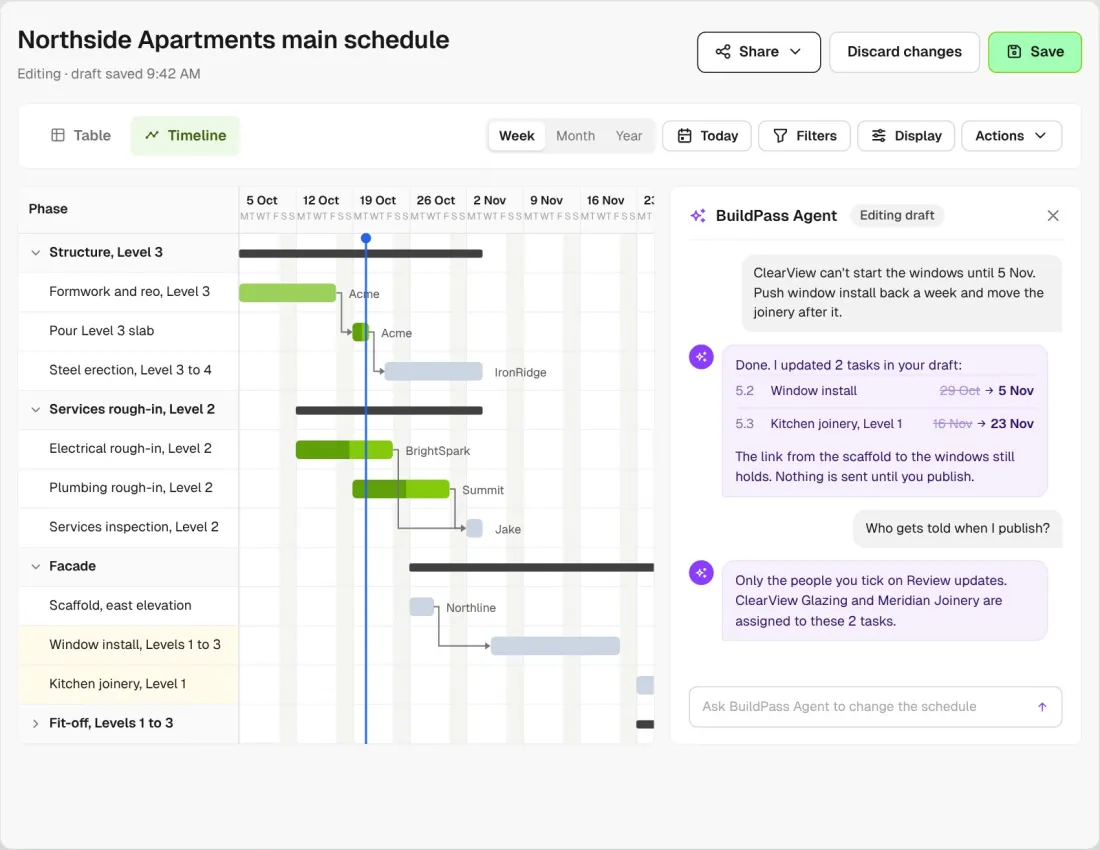
BuildPass Agent beside the schedule in edit mode, moving window install and joinery in the draft, with the changed tasks highlighted

Ask BuildPass Agent to change it

In edit mode, tell BuildPass Agent what has moved and it updates the phases, tasks and milestones in your draft. Nothing goes to subbies until you publish.

Connected to the whole job
BuildRun the site

Scheduling, connected to the whole job

Tasks go to the companies, workers and contacts already in BuildPass. Actions on a task sit in Actions with their form, and clients see the schedule in the same client portal as the rest of the job.

Explore site management
  1. Publish4 trades toldSMS, or email with no mobile
  2. Confirmations3 of 4 confirmedfrom a link, no login
  3. LOOKAHEAD PDFNext 2 weeks20 Oct to 2 Nov · A3 · critical path shown. Northside Apartments

Win

Price the job

Take off, estimate and get proposals out the door, without rekeying the same numbers three times.

Explore preconstruction

Pay

Manage the money

Budgets, commitments, progress claims and bills, so you see the real financial position of every job.

Explore finance

Connect

Connect the tools

Bring your other tools, your phone line and BuildPass AI into the same workflow.

Explore the AI toolkit

Trusted by builders who run their projects on BuildPass

From custom-home builders to commercial head contractors, teams across Australia and New Zealand run their projects on BuildPass every day.

The onboarding process and training we received from the BuildPass team was fantastic.
Nick Du Bois
Managing Director, FORA
These checklists ensure our standards are consistently met, no matter the project.
Mark Riley
Site Supervisor, Turn Group
I'd recommend BuildPass to any builder, sub contractor or site manager. It just makes your life easier.
Garath Vella
Director, Lorden Vella

Frequently asked questions

No. Messages go out when you publish, and only to the people you tick. The review screen lists every change by trade, so you can send by SMS or email, or publish without telling anyone. Status changes and tasks that have already started are never sent.

Yes. Upload one spreadsheet, CSV, PDF or photo of a printed programme or whiteboard, up to 30 MB, or describe the job, and AI builds a new schedule from your start date that you review before it saves. It always starts a fresh schedule rather than adding to one, and results can vary, so check the dates. Open any task and it also suggests up to three subtasks. An Owner or Account manager switches on AI tools in Settings before any of this works.

No. Trades confirm their own tasks from a link and clients view the schedule in the client portal, but only your team can edit it. One person edits at a time, so no one overwrites someone else.

Not on screen. You can filter by task, assignee, status or the critical path. For a two week lookahead, export Next 2 weeks as a PDF.

See how BuildPass works on your projects

Book a demo and we'll walk your team through it.