How to connect BuildPass to SharePoint
Connect BuildPass to SharePoint through your AI assistant. Pull drawings into BuildPass, check subcontracts against defects and raise RFIs from the specs.

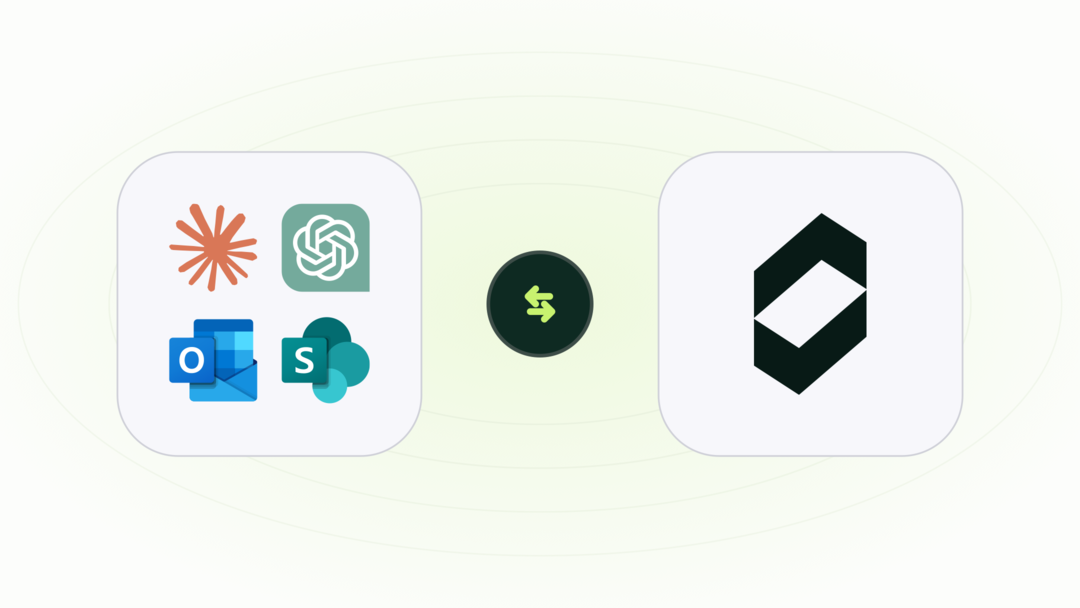
Your drawings, subcontracts and specs live in SharePoint. Your RFIs, defects and site diaries live in BuildPass. Connect the two and your AI assistant can move files across, read the documents and act on the project records in the same chat.
It works with Claude, ChatGPT, Microsoft Copilot and other AI assistants. Here's what that looks like on a real job.
What you can do with BuildPass and SharePoint
- Pull in the latest drawings. "Put the latest structural drawings from the Harbour Street SharePoint folder into the project's documents in BuildPass."
- Check scope against defects. "Find the plumbing subcontract for Harbour Street in SharePoint and flag any open defects assigned to the plumber that look outside their scope."
- Raise RFIs from the specs. "Check the specification in SharePoint for the balcony waterproofing detail and raise an RFI to the architect in BuildPass."
- Turn minutes into actions. "Find last Tuesday's site meeting minutes in SharePoint and create an action in BuildPass for each item, with the owner and due date."
- File the weekly report. "Save a one-page summary of this week's site diaries to the Harbour Street project folder in SharePoint."
Your assistant asks you to approve anything that changes a record. Ask for a draft first when you want to check it before it lands.
How to connect BuildPass to SharePoint
- Connect BuildPass to your AI assistant. Copy your BuildPass connection link from your account settings in BuildPass, add it to your AI assistant and sign in with your BuildPass login. See our guides for Claude, ChatGPT and Microsoft Copilot.
- Connect SharePoint to the same assistant. Add SharePoint from your assistant's list of connectors or apps and sign in with your Microsoft 365 account.
- Ask. Start a chat with both switched on and try one of the prompts above.
Setup steps are in BuildPass, next to your connection link.
Put it on autopilot
If your assistant can run prompts on a schedule, the job gets done before you start your day. Try: "Every morning, pull any new drawings from the project's SharePoint folder into BuildPass."
To make it your own, turn it into a skill with our free Claude skills for builders, or find more ideas in our AI prompts for builders.
Frequently asked questions
Does BuildPass sync with SharePoint?
There's nothing to sync. SharePoint keeps your files, BuildPass keeps your project records, and your AI assistant works across both when you ask.
Can it see things I don't have access to?
No. Your assistant uses your own BuildPass and Microsoft 365 logins, so it only sees what you can already see in each.
Which AI assistants work with BuildPass?
Claude, ChatGPT, Microsoft Copilot and other AI assistants that support MCP connectors.
On Google Workspace instead?
See how to connect BuildPass to Google Drive.
See it on a live account
Not on BuildPass yet? Book a demo and see BuildPass working with SharePoint on a real project.
More news you'll care about
Don't stop there, the BuildPass blog is filled with interesting insights and innovations that'll help you and your construction business stay ahead of the pack.