How to connect BuildPass to ChatGPT
Connect BuildPass to ChatGPT. Ask about RFIs, defects, site diaries and subbie compliance, move files and update your BuildPass records from the chat.

If your office already runs on ChatGPT, bring BuildPass into it. Ask which defects are still open on the Riverside job, which subbies are missing a SWMS, or what happened on site yesterday, and ChatGPT answers from your live BuildPass records.
This guide shows what you can do once BuildPass is connected to ChatGPT, and how to set it up.
What you can do once BuildPass is connected to ChatGPT
- Find what you need. "Which RFIs on Harbour Street have been open for more than a week, and who are they waiting on?"
- Keep records moving. "Log a defect for the missing handrail on Level 2, assign it to the framing subbie, due Friday."
- Stay on top of compliance. "Which subbies on the Millbrook job have insurance expiring in the next 30 days?"
- Check who was on site. "Who signed on at Riverside yesterday, and how many hours did each company do?"
- Get the reporting done. "Summarise this week's site diaries for the CBD job as a one-page update for the client."
ChatGPT uses your own BuildPass login, so it only sees the projects and records you can. For more ideas, see our AI prompts for builders.
Bring the rest of your tools in
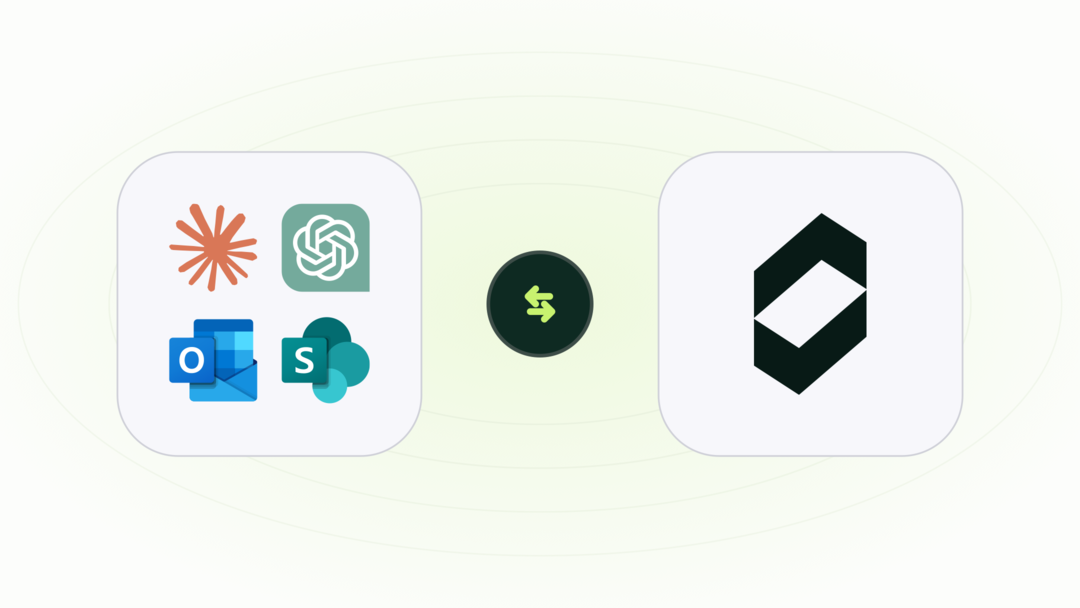
Connect your email, files, calendar and accounts to ChatGPT too, and one prompt can work across all of them. Pull drawings from SharePoint into BuildPass, chase RFIs from your inbox or check subbie insurance before the payment run. See how to connect BuildPass to Outlook, Gmail, SharePoint, Google Drive, Microsoft Teams, Google Calendar, Xero and Sage Intacct.
How to connect BuildPass to ChatGPT
- Copy your BuildPass connection link. It's in your account settings in BuildPass, along with setup steps.
- Add BuildPass to ChatGPT. Add it as a custom app or connector, paste the link and sign in with your BuildPass login. On a business workspace, your ChatGPT admin can then share it with the team.
- Ask your first question. Try one of the prompts above.
Put it on autopilot
If your assistant can run prompts on a schedule, the job is done before you start your day:
- "Every weekday at 7am, give me my morning briefing across all active projects."
- "Every Monday at 8am, draft reminders for every RFI that's been open more than a week."
- "Every Friday at 3pm, draft the weekly client report for Harbour Street."
Find more ideas in our AI prompts for builders.
Prefer to stay inside BuildPass?
BuildPass Agent does the same work from a chat panel inside BuildPass, with no setup. Connecting ChatGPT is for when you'd rather work where you already are and bring your other tools along. See how the BuildPass MCP connector works.
Frequently asked questions
Can it see projects I don't have access to?
No. ChatGPT uses your own BuildPass login, so it sees the same projects and records you do and can only do what your account can do.
Will it change my records without asking?
Your assistant asks you to approve anything that changes a record. That approval comes from the assistant, not from BuildPass. Ask for a draft first when you want to see a change before it lands.
Do other AI assistants work too?
Yes. See how to connect BuildPass to Claude and how to connect BuildPass to Microsoft Copilot.
See it on a live account
Not on BuildPass yet? Book a demo and see BuildPass working inside ChatGPT on a real project.
More news you'll care about
Don't stop there, the BuildPass blog is filled with interesting insights and innovations that'll help you and your construction business stay ahead of the pack.